RingEX Phone Setup
Server URL: https://mcp.labs.ringcentral.com/ringex/phone
Install the plugin
The fastest way to connect RingEX Phone is an official plugin — it handles server configuration for you, so there's nothing to side-load manually.

A dedicated Claude plugin for RingEX Phone is on the way.
Coming soon
Installing the MCP server manually
No plugin for your client, or you'd rather add the server directly? Follow the steps below.
ChatGPT calls this an App (renamed from "Connector" in December 2025). Connecting a server that can call tools — not just read/fetch — requires Developer Mode.
- Business/Enterprise/Edu workspaces: a workspace admin enables Developer Mode via Workspace Settings → Permissions & Roles → Connected Data. Individual Enterprise/Edu accounts, or Pro (read/fetch-only): go to Settings → Apps → Advanced Settings and toggle Developer mode on.
- In Settings → Apps, click Create, enter the URL above as the MCP Server URL, name it (e.g.
RingEX Phone), click Scan Tools, then Save. - Complete the RingCentral OAuth flow when prompted.
- Open a new chat, click the + icon or tools menu, and select RingEX Phone — or mention it by name in your prompt.
- Verify: ask "Show me my call logs from today."
Pro users
With read/fetch-only Developer Mode, you can read call log and message data but can't use any write-type tools.
Custom connectors live under Customize > Connectors (Claude.ai) or Settings → Connectors (Claude Desktop) — not through claude_desktop_config.json, which only supports local stdio servers.
- Sign in to claude.ai, or open Claude Desktop.
- Pro/Max: go to Customize > Connectors → click + → Add custom connector. Team/Enterprise: an Owner first adds it under Organization settings > Connectors → Add → hover Custom → select Web; members then connect individually via Customize > Connectors.
- Enter a name (e.g.
RingEX Phone) and the URL above, then click Add. - Complete the RingCentral OAuth flow: sign in with your RingCentral account and authorize the integration.
- In a new conversation, click the + button (lower left of the chat box) → Connectors, and toggle RingEX Phone on.
- Verify: ask "Show me my call logs from today."
-
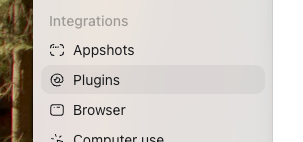
Open the Codex app, click Settings, then under Integrations click Plugins.
-
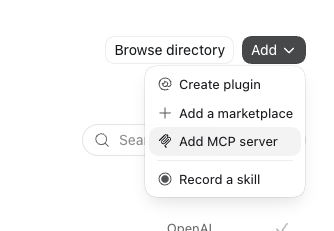
Click the MCP tab, then click Add → Add MCP server.
-
Enter a name (e.g.
RingEX Phone), set Type to Streamable HTTP, and enter the Server URL above.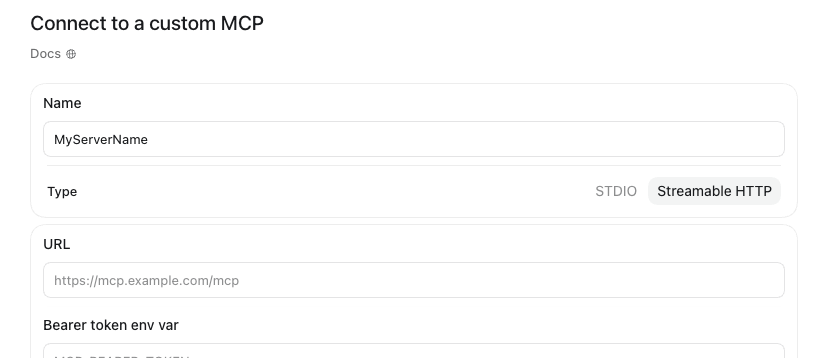
-
Save, then authenticate with your RingCentral account in the browser window that opens.
- Codex has no connector picker — mention "RingCentral" explicitly in your prompt, e.g. "Using RingCentral, show me my call logs from today."
Troubleshooting
Tools not appearing after connecting
- Confirm the URL has no trailing slash.
- Disconnect and reconnect the server from your client's connector/app settings.
- Check that your network allows outbound HTTPS to
*.ringcentral.comand*.labs.ringcentral.com.
Authentication errors
- Remove the connector/app and re-add it to restart the OAuth flow.
- Ensure your RingCentral account has the necessary API permissions.